Más filtros

Translation Issue - ITALIAN

Gabriele Gianello
Actualizado 2019-07-03 05:18:10 UTC 

Hi! I’m excited about Netro App and I’d love to contribute opening a support ticket for a double check of translations. 

There’s a lot of minors but one is always in evidence: the names of the DAYS OF THE WEEK (please see the attached image) .

The right translation is:

SUNDAY : DOMENICA

MONDAY: LUNEDÌ 

TUESDAY: MARTEDÌ 

WEDNESDAY: MERCOLEDÌ 

THURSDAY: GIOVEDÌ

FRIDAY: VENERDÌ 

SATURDAY: SABATO 


THE FIRST day of the week in Italy is always settend Monday 

Ver: 9581   Comentario: 1

Netro

Emilio Maione
Actualizado 2019-04-25 15:49:02 UTC 
Come posso aggiungere skill netro in italiano grazie 
Ver: 11584   Comentario: 2

Device sharing between multiple users

Netro Support
Actualizado 2019-07-29 03:11:08 UTC 
Device sharing between Netro users is supported. A user can authorize multiple users to access his or her Netro products.

To give access to other users, please log in your Netro account, go to Settings->Controller->Manage Users.

Note: Shared users must have a Netro account.


Add or delete users

Device owner can add or delete users through adding or deleting their user name or email account.

Tap “Manage Users” to authorize other users to access the device owner’s Netro products.


Tap “Manage Users” and then you will be directed to the “Users” Page.

Then you can add new manager or new player by tapping the “+” button.


Tap the “+” button and input the user name or user account.

Please input the user name or user account.


Tap “save” and then the user can have access to owner’s shared device.

Users’ information is displayed on “Users” page.


Once users are added, shared users will be shown on “Users” page.


 Access rights of shared users


There are two different types of shared type: Manager and player. Manager and player have different access rights. Manager has more access rights than player. Both manager and player cannot delete controller, change address, delete or add sensor.

Note: Shared users must have a Netro acccount.

Manager’s access rights:

Manager can use all the features of the shared device except deleting controller, changing address, deleting or adding sensor.

Player’s access rights:

a. Read-only: All settings in Controller, Sensors, Program(except run a cycle), Zone list can not be edited.

b. Hide: Preferences, Regulations, Restrictions, zone detail are not shown on Settings page. Regulations events and Restrictions events created by users are not shown on Schedule page.

c. Access to Schedule page: Player can create a one-time Run or Rain Delay on Schedule page.

d. Access to Program:Player can only do “run a cycle now” to programs created by device owners. Player can create a one-time Run or Rain Delay on Schedule page.


Ver: 13016   Comentario: 4

Kickstarters for Pixie, the Smart Hose Faucet Timer

Netro Inc
Actualizado 2019-06-05 01:59:12 UTC 

To the Netro community:


We are very excited to introduce our new product, Pixie, the WiFi-connected Hose Faucet Timer. We have spent almost a year designing and developing the smart timer and now it is ready to meet the users.  


We believe Pixie is a great choice if you have water systems running through hose faucet. It is as smart as Sprite and can pair with Whisperer. It is solar powered and has a removable battery for quick charge. If you like the features in the Netro app, it has all the access to them.


For more information about Pixie, please email to info@netrohome.com or simply leave a message/comment below and we will send you a promotion code for the first 50 buyers.


Thanks,

Netro Inc

Ver: 382953   Comentario: 24

Notice To Users of Weather Underground

Netro Inc
Actualizado 2019-03-19 04:52:48 UTC 

Notice of obsoleting Weather Underground


Netro has changed the weather source Weather Underground to Dark Sky from the server side for users of Weather Underground. The reason is Weather Underground stopped its API service without any notice. The whole community is looking for solutions. So we have internally disabled the Weather Underground option and used the data from Dark Sky.


We will support AccuWeather and openWeatherMap in the next release of the app. We expect to launch it early next month.

We are sorry about the inconvenience. Please contact us if you have any questions.


Regards,

Netro

Ver: 10333   Comentario: 0

Netro has updated max day regulation

Netro Support
Actualizado 2019-12-25 01:46:02 UTC 

To the Netro Community,


Recently Netro has enabled the max day Restriction in Settings->Regulation for those cities which limit watering to one or two days per week. We are aware that many cities are under mandatory regulation and the penalty for violating the water regulations is large, therefore, we have enabled the max day regulation.

Users can go to Settings->Regulations to check and please feel free to report us if the regulation is incorrect.

For some local regulations, we are not quite sure if it is conservation plan or mandatory regulation. If the regulation is not needed, please write to us support@netrohome.com and we will check and update our regulation database accordingly.


Thanks,
Netro Support


Ver: 12029   Comentario: 0

Instructions about Replacing Rainbird System

Netro Support
Actualizado 2019-03-20 08:06:44 UTC 

Replacing Rainbird system


This page lists some instructions about replacing the common types of Rainbird system with Netro smart watering controller. 


Example 1:


 The common wires which should be connected to the C slots in Netro.

The Sprite controller does not need the ground wires. It does not need the rain sensor either. You can leave the M slot unconnected. 

Example 2:


The COM wire goes to any C slot in Sprite.

The M slot will be empty because you do not have master valve.

The two red wires on the left go to the two 24 VAC slots.

Others are straightforward.

Example 3:


1. the COM wire in RainBird go to any of the C slots in Netro

2. The 1-6 zone wires in RainBird go to Slot 1-6 in Netro

3. Use the power adapter coming with the package for Netro

Other wires you can disregard them.


Example 4:


12(blue) and 11(red) go to the two AC slots on the right side for Netro. 10(white) goes to any one of the C slot in Netro. 9(black) goes to the M slot in Netro. 8-1(red) go the ZONES in Netro. You can leave the green wire (GND) open. The two leads from the power adaptor go to the two AC slots.


Ver: 14244   Comentario: 0

Instructions about Replacing Hunter System

Netro Support
Actualizado 2019-03-20 08:08:36 UTC 

Replacing Hunter system


This page lists some instructions about replacing the common types of Hunter system with Netro smart watering controller. 


Example 1:
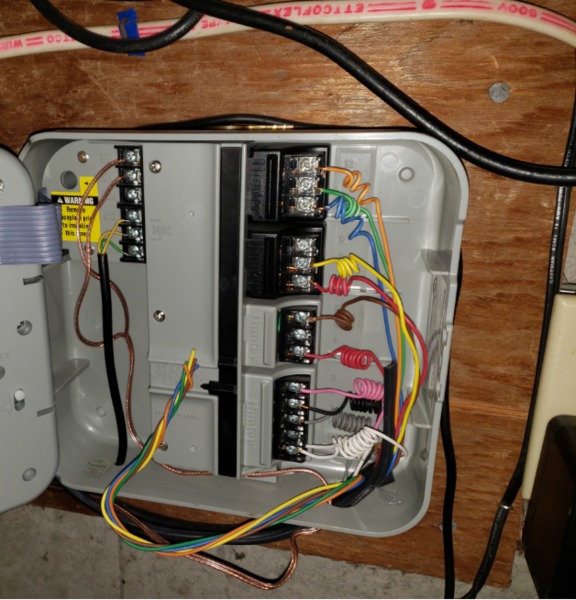

To replace this controller with Netro smart watering controller, please follow the instructions.

The white wires are the common wires which should be connected to the C slots in Netro. Then the zone wires (1,2,3, .. 12) are directly mapped to the 1, 2, 3 .. 12 slots in Netro. The last step is to connect the power (the ground wire is not needed for Netro) then you should be good to go. The power adapter wires are the 2 yellow wires on the left side.

The green one below the yellow wires is the ground wire which is not needed for Netro.

The copper wires are rains sensors which are not needed for Netro either because Netro gets the weather information from WiFi network.


Example 2:
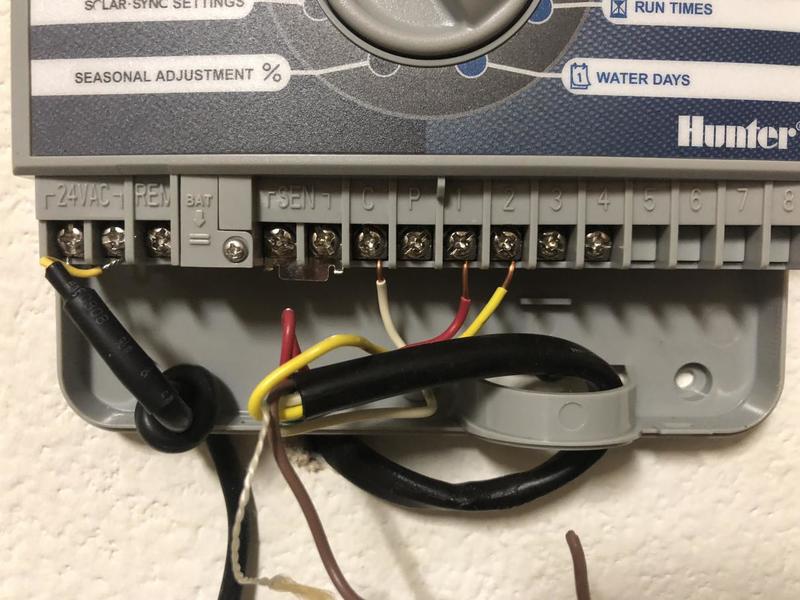
For this system, please connect the white wire to any one of the C slots in Netro. You can leave the M slot of Netro smart watering controller and one of the C slot unconnected.

The last step is to connect the power. The power adapter wires are the 2 yellow wires on the left side.

SEN are rains sensors which are not needed for Netro either because Netro gets the weather information from WiFi network.


Example 3:
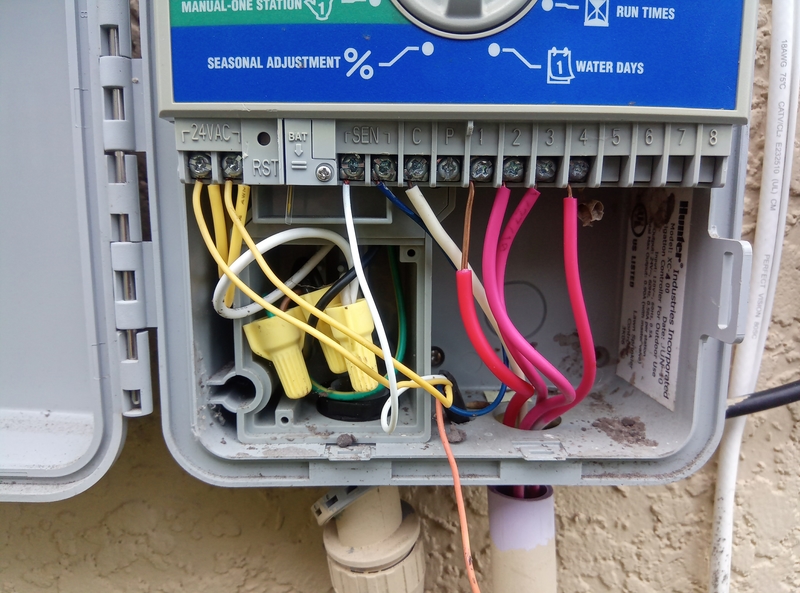

Please connect the white wire to any one of the C slots in Netro. You can leave one of the C slot unconnected.

This system has 3 wires which connects to 24v lines. To replace it with Netro smart watering controller, you can use the existing 24V power(the yellow wires) for your Sprite. It looks like the thinner 2 are the ones but you might just want to try them on Sprite. Or you can use a voltage meter to determine.

If the thinner yellow wires turn out to be the power, than I think the thinner white wire is the common wire which should go to the C slot in Sprite.

SEN are rains sensors which are not needed for Netro either because Netro gets the weather information from WiFi network.

Example 4:
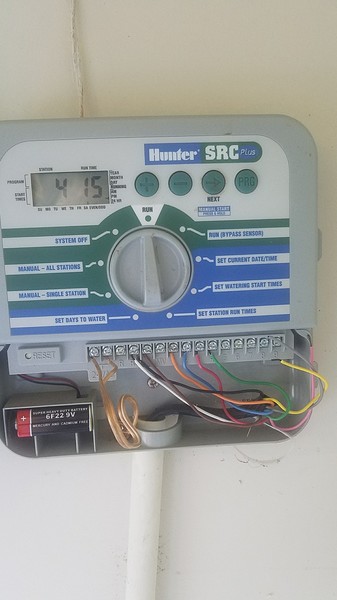
You should connect the white wire(currently on RS) to one of the C slots in Sprite.

You do not need to connect the black wire(currently on C) and the brown wire(currently on RS). RS terminal is the rain sensor. Therefore, you do not need to connect these wires.


Example 5:
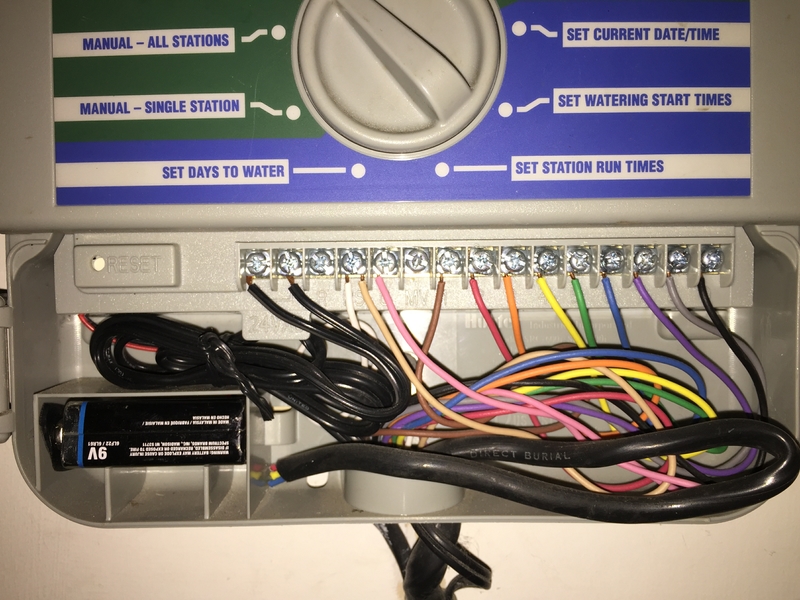
The white wire is the common wire which should be connected to one of the C slots in Netro. The power adapter wires are the 2 black wires on the left side.

RS terminal is the rain sensor. Therefore, you do not need to connect these wires.


Example 6:
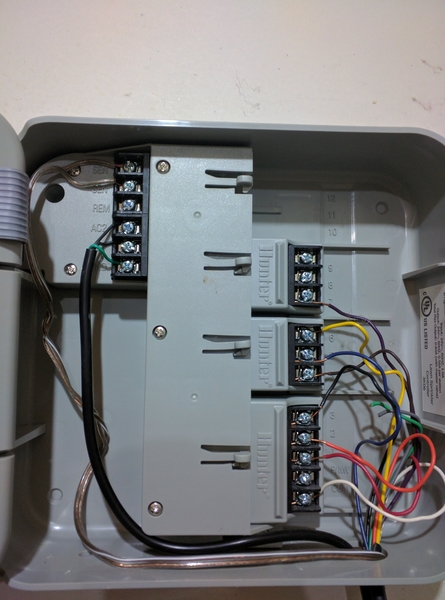
The white wires is the common wires which should be connected to one of  the C slots in Netro. The power adapter wires are the two black wires on the left side.

The green one below is the ground wire which is not needed for Netro.

You do not need to connect the rain sensors because Netro get the weather forecast through WiFi.


Example 7:
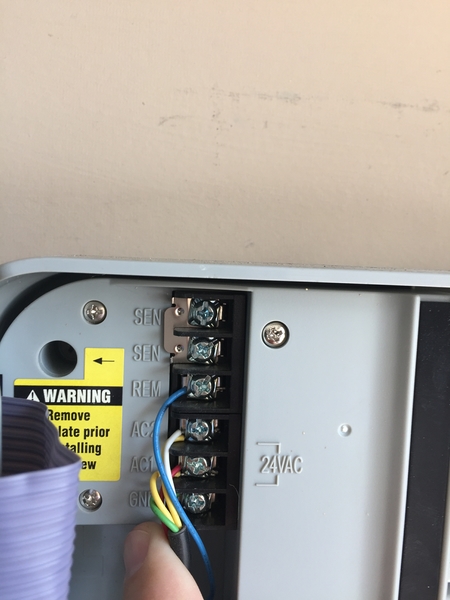
You do not need to connect the blue one (remote). You can just leave it dangling but please use the tape to cover the metal head. The remote feature in Sprite is through the WiFi.

I am not sure about the red and white one. These are the two AV power wires. Normally there is only one wire for AC1 and one wire for AC2. In your case, it looks like the AC power is also sent to another device. The safest way to handle this is to keep this original connection. You might want to "noodle" the wires and insert them into the two "24 VAC" slots in Sprite. Please check out this connector for wire junctions:

https://www.amazon.com/Gardner-Bender-25-AWC-Assortment-Resealable/dp/B000F5TTE8



Ver: 26639   Comentario: 24

Select suitable plants for slope

Netro Support
Actualizado 2018-12-13 07:48:53 UTC 

Select suitable plants for slope


Growing plants in some area with slopes may be more difficult than level gardens. A lot of challenging factors should be taken into consideration, for example, the different soil conditions, the sunlight condition, the slope condition, etc. Netro's smart watering would take care of these factors. Please go to Settings->Zones , select your zone and choose your soil type, slope condition and other settings.


The top priority is to evaluate the pitch and runoff. If the pitch is more than 30 degrees, it might be a good idea to terrace the area to prevent topsoil from eroding and all moisture evacuating every time you water or it rains. Once you have solved any moisture retention and erosion problems, it is time to evaluate the site further for exposure and zone, and plan what plants grow on slopes. The types of plants you choose will depend not only on your visual preference and vision but also the needs of the area. Deep rooted plants help stabilize soil, trees add dimension and shade to prevent excess evaporation, and low growing ground covers cover up unsightly areas with ease of care.


Although growing plants on a hillside can be a challenge, once established they can transform the area and help keep soil from slowly weeping down into the flatter parts of the terrain. Taller shrubs and bushes add many seasons of interest and will help give the area a sculpted appeal. Just remember that young plants will need additional moisture, staking and training as they establish. To keep maintenance down, choose plants that produce very little mess which would otherwise require extra work to clean up annually. Some plants that work well on slopes include:

Burning Bush 

Fragrant Sumac 

Japanese Yew 

California Lilac 

Creeping Juniper 

Dwarf Forsythia 

Snowberry 

Siberian 

Carpet Cypress


Read more at Gardening Know How: Choosing Plants For Sloping Areas – What Plants Grow On Slopes https://www.gardeningknowhow.com/special/slope-hill/plants-that-grow-on-slopes.htm

Ver: 11720   Comentario: 1

Scheduling ( Two Smart watering levels; Smart disabled)

Netro Support
Actualizado 2023-06-09 06:07:25 UTC 

There are 2 different levels of Netro’s smart watering you can choose (For Netro watering controller, please go to Settings->Zones->Smart Zone; for Netro Pixie timer, please go to Settings->Garden->Smart Zone)


 1. Smart watering: Level advanced

This is the default setting of Netro watering controller's smart watering. In this level, your zones will be watered automatically by Netro with smart schedules.

Netro will do everything for you, you do not need to set up the program/schedule.

Netro will skip smart watering and programs when there is large amount of rain(>0.2inch/ 5.08 mm) or watering regulations and manual restrictions.

You can inspect the Smart schedules in the calendar view. They are with the blue water-drop icons.


2.Smart watering: Level basic

This is the default setting of Netro Pixie timer's smart watering. In this level, no smart schedule will be generated. You will need to add programs manually (go to Settings->Programs to add programs) and Netro will skip programs when there is large amount of rain(>0.2inch/ 5.08 mm) or watering regulations.

 If you do not want smart zone schedule to override your own programmed schedule, you can set up the Smart Zone level from Advanced to Basic, which only skip rainning days for your programmed schedule.

Please note when smart zone is enabled, your local regulations will automatic override your own program if there is any conflict. So when you set up your own program watering time, please do not conflict with your local Regulations if there is any. To check up regulations, please go to Settings->Regulations.


3.Smart-zone feature disabled

If you want to create your own programs and turn off smart zone feature and rain delay feature, go to Settings->Zones->Smart Zone (Settings->Garden->Smart Zone for Pixie Timer) and toggle the enable button. When the smart zone is disabled, the system will strictly follow the user program to water the zones. There is no intelligence here. Netro will not skip your schedules when there is rain. Regulation feature will not be in effect as well.


Ver: 19592   Comentario: 12

Customization->set rain/temperature/wind threshold to skip watering

Netro Support
Actualizado 2018-10-13 06:19:08 UTC 

Customization->set rain/temperature/wind threshold to skip watering

Netro automatically creates dynamic watering schedules according to local weather, so if you turn on the smart zone feature for your zone, season adjustment will be made with smart watering schedules according to weather.

There are different types of weather restrictions: rain, temperature and wind.

By default, If you turn on the smart zone feature, Netro will skip the schedules (including manual schedules from user programs) when there is a chance of significant rain(>0.2inch).

The default threshold to skip watering when temperature is too low is 0 Celsius degree (32 Fahrenheit) for all the Netro controllers.

You can now customize rain, temperature and wind threshold through Settings->Preferences.


Ver: 10479   Comentario: 0

Put Sprite in "paused" mode in winter

Netro Support
Actualizado 2023-11-07 06:09:05 UTC 

Put Sprite in "paused" mode in winter 


To put Sprite in "paused" mode in winter, you will have winterize your system. First you will have to blow out the sprinkler. You can look at this video to find some useful information. 

https://www.youtube.com/watch?v=s3YRbJYmvgA&t=99s


This video mentioned that you will have to turn on the sprinkler, so you can use the instant manual run feature in the home page to manually start watering for each zone to make sure all the water is out of system.


Then you should put Sprite in "paused" mode just in case some one (for example the kids) accidentally starts a manually run from the app. To put Sprite in "paused" mode, you can go to the Home page->"Enabled". 


Ver: 12365   Comentario: 1

Water Restriction Helps You Save Water

Netro Support
Actualizado 2018-06-04 10:03:46 UTC 


Why should we conserve water? Water is under threat from many sides. It faces pollution problems, outdated infrastructure, rising costs, and unprecedented droughts and rainfall patterns as the climate changes. Only 1% of the entire water supply in the world is available for human and animal use. 97% is salt water and the remaining 2% are in forms of ice caps or glaciers. People all over the world use this 1% for agriculture, manufacturing, community and personal household needs, and for sanitation operations.

Nowadays drought conditions occur everywhere. There's been a lot of news and talk about the drought condition we're having and saving water. Depending on climate conditions, California, Texas, Nevada and many other states have strict rules about when and how much water is allowed for home irrigation. States and cities are forced to implement mandatory water conservation programs. However, Netro honors your local watering regulations if exact location is provided and will inform you when restrictions apply. With Netro, you will not need to worry about fees and penalties. Netro will automatically upload your local water conservation regulations to your controller and cut down your water usage based on these requirements. You can go to Settings->Regulations to see your local water restrictions.

You still pay for each drop of water in your home, whether you use it or not. By using water wisely and eliminating leaks, the extra water you save means money in your pocket. To conserve our water, we should be watching our water usage to prepare for future drought.


References

https://phys.org/news/2018-05-america-infrastructure-failingbut.html


Ver: 14110   Comentario: 0

How to Water Trees and Shrubs

Netro Support
Actualizado 2018-06-04 10:07:08 UTC 


The amount and frequency of watering depends on the root system of your plants. Shrubs and trees -known as woody plants - have the potential to grow deeper root systems than flowers which means they draw water from a larger volume of soil. In general, if you receive a good rain every week or 10 days, these woody plants are probably getting the water they need. They thrive with a deep watering with less frequency than most flowers. When plants are shallow-rooted they will need more frequent light irrigation just like the lawn.


1.How to Water Shrubs

The most efficient way to water woody shrubs is to apply water slowly to the soil allowing it to penetrate deeply to rewet the entire root system without running off. This can be done by repeatedly moving a slow flowing hose from bed to bed or by using a drip irrigation system that allows water to leak gradually along the entire length of the irrigation tubing. It is important that the water reaches the plants roots. It is unnecessary and wasteful to water deeper than the plant's root zone.

If you are using an irrigation system, it is worth noting that woody shrubs need to be watered separately from shallow rooted plants and thus need to be on a different irrigation valve than lawns or flowers.


2.How to Water Trees

Trees need regular water during the first several years after planting, until the roots have grown deep enough to carry the plant through dry periods. Once established, however, most trees require only infrequent irrigation.

Stop watering when runoff starts. Soils high in clay accept water slowly, often as little as 1/4 inch per hour. Water infiltration is especially slow in compacted soils. If water starts to pool or run off, stop irrigating, let the water soak in, and start watering again.

Don't saturate the soil for long periods. Water displaces air in the soil, so long periods of soil saturation can suffocate growing roots. Take a long enough break between irrigation cycles to allow the free water to be absorbed. If in doubt, probe or dig to make sure that the soil isn't soggy below the surface.


3. How to Determine the Right Amount of Water

Don't wait for the plants to tell you with wilting and leaves dropping off. Then youll just be watering to keep the plants roots alive so it may possible come back later. Inspect the soil. Dig around with your hands, soil probe, garden trowel, or shovel. Youll be able to tell quickly how far down you are actually watering.

With a little practice, you will be able to maintain the proper moisture balance to ensure your shrubs get the water they need to thrive in your landscape.


Resources

https://www.loveyourlandscape.org/expert-advice/shrubs-and-flowers/basic-care/how-much-water-do-shrubs-need/

https://tomlinsonbomberger.com/blog/how-to-water-new-trees-shrubs-and-other-plants/


Ver: 13795   Comentario: 3

How to replace an old controller with more than 12 zones

Netro Inc
Actualizado 2019-11-06 09:20:19 UTC 

If your old controller has more than 12 zones, you will need to have 2 Netro controllers to replace it. Please follow the diagram below to safely wire the 2 controllers:


Now you can use the 2 C slots for the common wires and the 2 sets of 1-12 slots for the zone wires. If you do not have a master valve or pump, just ignore the orange wires.


IMPORTANT: the blue wire has to be connected to the left 24VAC on both controllers and the yellow wire has to be connected to the right 24VAC on both controllers.


Please contact us if you need the wire connectors shown in the picture.


Netro Inc

Ver: 9482   Comentario: 0

Netro now supports Spanish, Italian, French and German for Google Assistant

Netro Inc
Actualizado 2020-02-28 07:49:20 UTC 


Great news again! We now support Spanish, Italian, French and German for Google Assistant voice control. Please say "Talk to Netro Home" in your Google Assistant app on your phone and link your Netro account before using your google devices.  


In case you experience difficulties in using the Netro Home skill, please write to support@netrohome.com or contact us in the Netro app.  


Thanks,  

Netro Inc


Ver: 9258   Comentario: 3

Netro now supports Spanish, Italian, French and German for Amazon Alexa

Netro Inc
Actualizado 2020-03-16 02:40:52 UTC 

Great news! We now support Spanish, Italian, French and German for Amazon Alexa voice control. Please find the new skill "NetroHome" in your Alexa app and link your Netro account.


In case you experience difficulties in using the NetroHome skill, please write to support@netrohome.com or contact us in the Netro app.


Thanks,

Netro Inc

Ver: 29614   Comentario: 7

Fertilization program

Andrea Merito
Actualizado 2020-04-27 14:30:47 UTC 

Good morning,

I ask you for a suggestion in your app.  in the program menu, in addition to displaying the manual and automatic programming, can you enter a command regarding fertilization?  I use fertilizers from the Bottos company, where each product has its weight and timing.  Maybe create a partnership with the big fertilizer companies.


Best.


Andrea

Ver: 8223   Comentario: 1

Add the option of the timeframe to start in one day and end in another

alnavasa
Actualizado 2020-05-08 20:36:44 UTC 

Add the option of the timeframe to start in one day and end in another:

Start ar 21:00 end at 3am

Ver: 8554   Comentario: 0

Server upgrade scheduled on May 16th between 8:30PM and 9:00PM (Pacific Time)

Netro Inc
Actualizado 2020-05-17 03:23:28 UTC 
Tema: General

To all Netro customers:


Due to rapid increase of active devices connected to the Netro cloud server, we are going to upgrade our server on May 16th Saturday night from 8:30PM to 9:00PM (Pacific Time). During that time frame, all cloud service will be temporarily unavailable but your watering schedules will run normally. If you have a smart watering controller, the light on the unit will blink fast.


Thanks,

Netro Inc


Ver: 9926   Comentario: 0